
Places on a map
How to save places from TikTok and Instagram to a map
Share the post to Munvi, an Android app that finds every place the video names and pins each one on a map, with what the post said about it and directions in Google Maps or Waze. A “10 cafés in Brooklyn” TikTok becomes ten pins, not one bookmark, and your saved places show up by city and near you.
 Free to start · Android
Coming soon to iPhone. Join the waitlist
How it works
Three steps, and you never leave the app you were in.
- 1
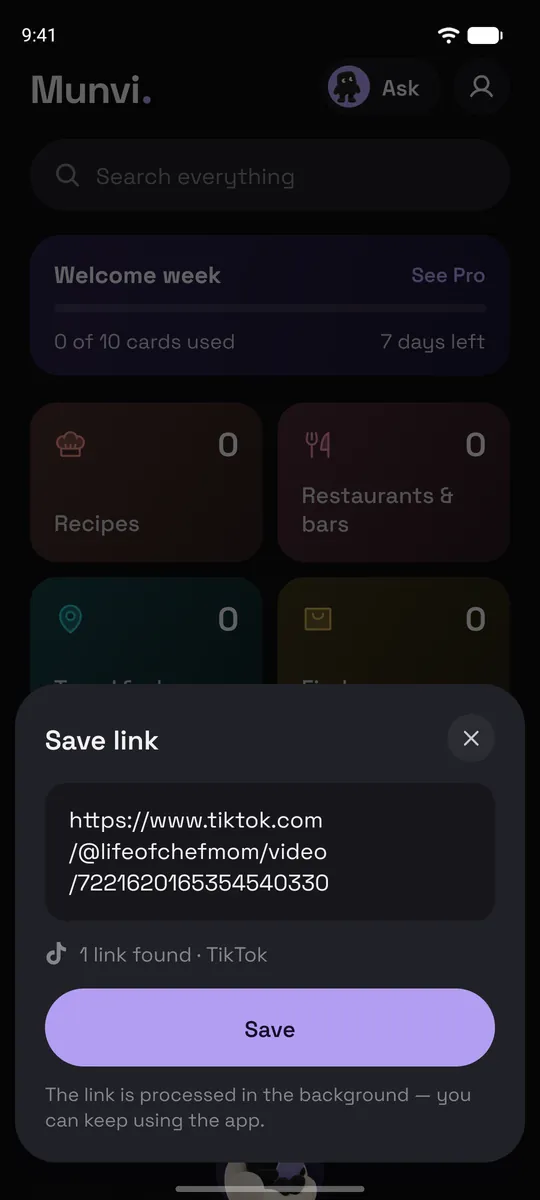
Share it to Munvi
In TikTok or Instagram (or YouTube, Facebook, Google Maps), tap Share and pick Munvi. On Android the app doesn’t even open: you keep scrolling, and a notification tells you when the card is ready, usually in about a minute. You can also paste a link inside Munvi.
- 2
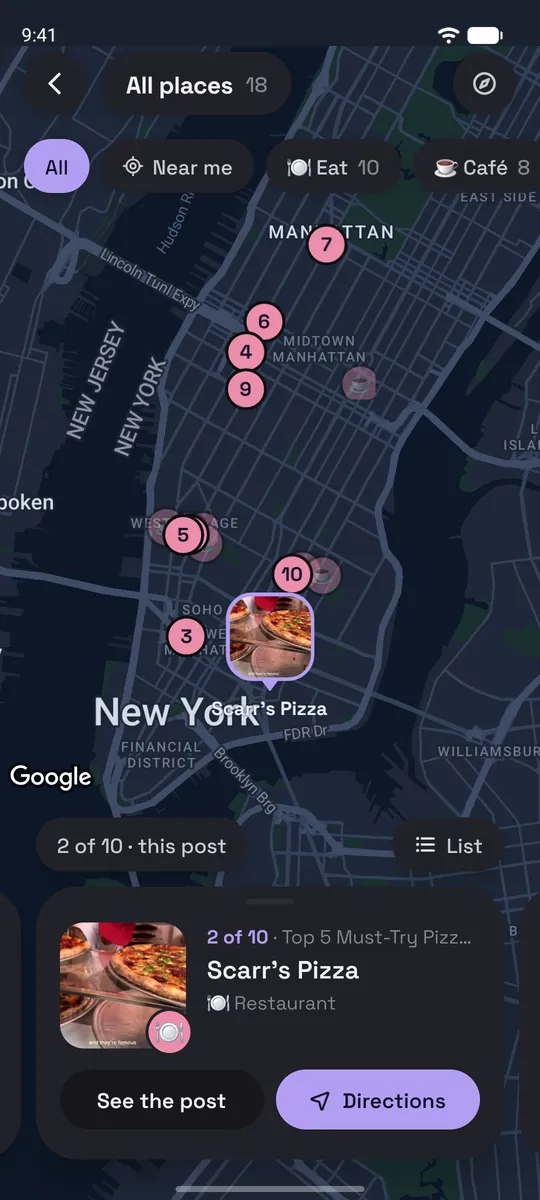
Every place gets a pin
Munvi watches the video and reads the slides and caption, finds each restaurant, bar, café or viewpoint it mentions, and puts it on the map with its address. The post goes to a folder like Travel & places or Restaurants & bars.
- 3
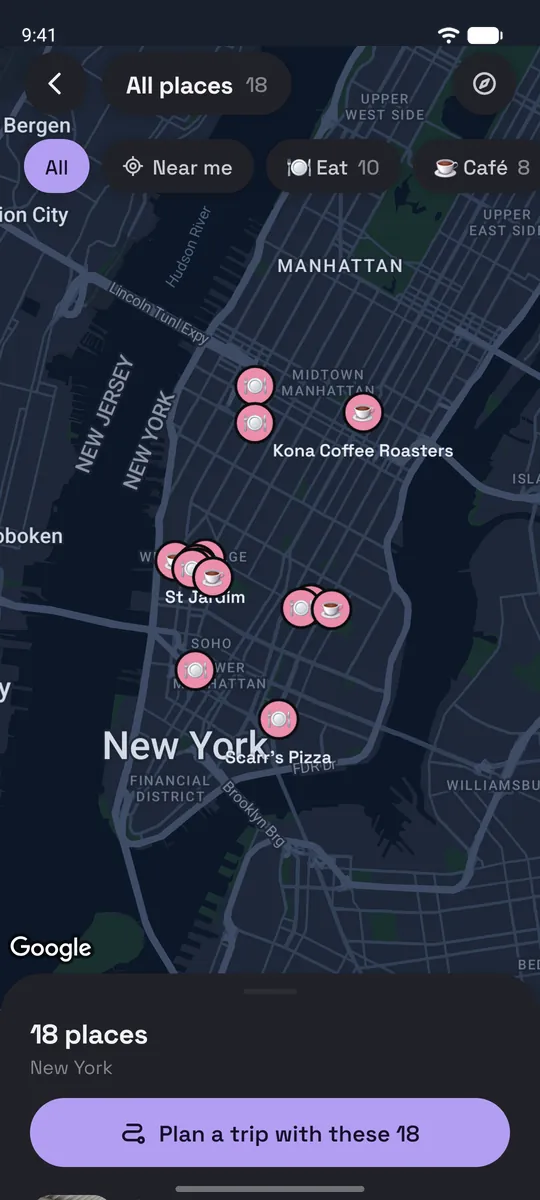
Open the map when you’re out
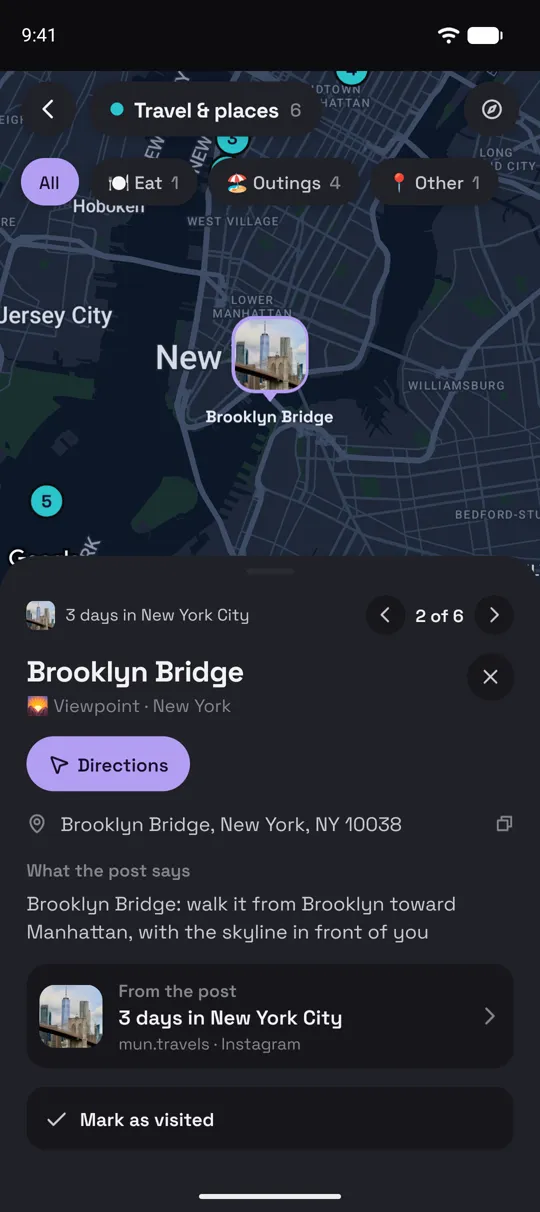
See what you saved near you, or everything in one city. Tap a pin for what the post said about it and get directions. After you go, mark it visited and rate it.
Screens from the Munvi app for Android.
What you get for each place
A place keeps a link to the post it came from, so the video that sold you on it is one tap away.
A pin with the address, and directions that open in Google Maps or Waze.
What the post says about it. The dish to order, the time to go, the view to look for.
Near me. The map shows what you saved within walking distance. Your location stays on the phone.
Kinds and marks. Filter a folder by Eat, Café, Bar, Outings or Stay, and mark places Want to go, Liked or Favorite.
Your own notes. Mark a place visited, rate it from “Not for me” to “Favorite”, and add a note and photos only you see.
A trip plan. In a city, Munvi splits the places you saved into days by area, orders the stops and opens each day’s route in Google Maps.
A list to send. Share a folder with the people you travel with, so you both save to it, or send it as a link with a map that opens without the app.
Good to know
- Munvi doesn’t add the places to your Google Maps saved lists. It opens Google Maps for directions, from its own map.
- Up to 12 places are pinned from a single post.
- Opening hours aren’t shown on the card; check them in Google Maps before you go.
- The free plan keeps one trip plan at a time.
- Android only for now.
Questions
Does it work with TikTok photo slideshows?
Yes. Munvi reads TikTok photo carousels and Instagram carousels slide by slide, so a list of places spread over ten slides still becomes ten pins.
Can I save a place straight from Google Maps?
Yes. Share a place from Google Maps to Munvi and it lands on the same map as the places from your TikToks and reels.
What if the video only says the name out loud?
Munvi listens to the video as well as reading the caption and the text on screen, so a place that’s only mentioned in passing still gets found and pinned.
Can I plan a trip with friends?
Yes. Invite them to a folder: you all see it and save to it, and the rest of your collection stays yours. Or send the folder as a public link, a numbered list with a map that opens in any browser.
Is it free?
It’s free to start. In your first week, up to 10 posts become cards as soon as you save them; after that you get 3 cards a week, made when you open the post. Pro, bought in the app, makes up to 100 cards a week right away and handles videos up to an hour long.
Is Munvi on iPhone?
Not yet. Munvi is on Android now, and the iPhone version is being built. Leave your email at the bottom of this page and we’ll write once, when it’s out.
The next one you save, you’ll actually use.
Free to start · Android