
How to organize saved workout videos
2 min readUpdated
Quick answer
Sort the videos by the workout you’ll do — legs, at home, 20 minutes — not by app or creator. For each one, write down the exercises with sets, reps and rest: that’s what you check while training, not the whole video.
Who it’s for: Anyone who saves workouts on Instagram, TikTok or YouTube and keeps rewinding the video at the gym to see how many sets it was.
In this guide
Step by step
- 1
Bring the workouts into one place
A “Workouts” collection on Instagram, one in your TikTok Favorites, a playlist on YouTube — or, better, one place for all three.
- 2
Sort by what you’ll do
By muscle group (legs, back), by place (home, gym) or by time (15 min, 45 min). Pick one and stick to it.
- 3
Write the exercises down
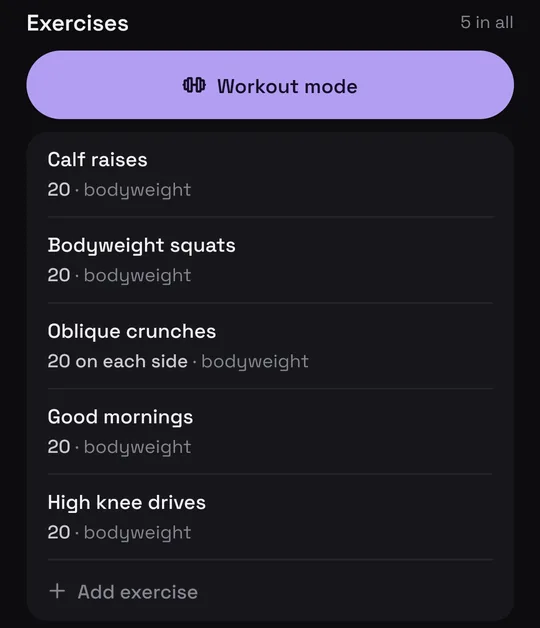
Name, sets, reps and rest. If the video only shows them, pause and write; if the person talks, the captions or transcript help.
- 4
Plan the week
Pick two or three workouts and keep the list at hand, away from the feed: opening the app mid-workout is the shortest way to scroll and lose count.
What to write down for each workout
- The exercises, in order. With the name you recognize, not only the video’s.
- Sets and reps. “3 × 12”, or the time, for timed exercises.
- Rest. The most forgotten part, and the one that changes the workout most.
- Equipment. Dumbbells, a band or nothing: it decides whether you can do it at home.

The video becomes a workout to follow
Share the video to Munvi and it writes down the exercises, sets and rest, in a Workouts folder. When you train, workout mode shows one exercise at a time, keeps the screen on and runs the timers, which ring even with the phone locked.
Questions
The video doesn’t say how many sets. Now what?
Write down what you did the first time and use it as the starting point next time.
What about a workout in the middle of a long YouTube video?
Keep the link at the right minute: under Share, switch on the time toggle.
I train with someone else. What do I send them?
The written list, not the video: that’s what they’ll check while training.
Sources
- Instagram Help Center: create a collection
- TikTok Help Center: collections in Favorites
- YouTube Help: save videos and create playlists
- YouTube Help: share a video from a set time
- YouTube Help: show a video’s transcript
Menus change with app updates. Seeing something different on your screen? Write to oi@munvi.app and we’ll fix the guide. How we write the guides